
Primary reasons for Google not indexing your pages:
XML Sitemap
Not submitting an XML sitemap could be one of the primary reasons for Google not indexing your pages.
An XML sitemap is a file that contains all the URLs of your website. When you submit it (example.com/sitemap.xml) to Google Search Console, Google bots can crawl the pages listed in the sitemap and discover them for indexing.
Usually, Google crawlers discover websites naturally through links. But it doesn’t guarantee that they will crawl all the pages.
An XML sitemap is an effective way for crawlers to find all the URLs on your website.
This is how you check XML Sitemap
Visit Google Search Console. Find the Indexing section and navigate to Sitemaps. You will see an option to submit a new sitemap.
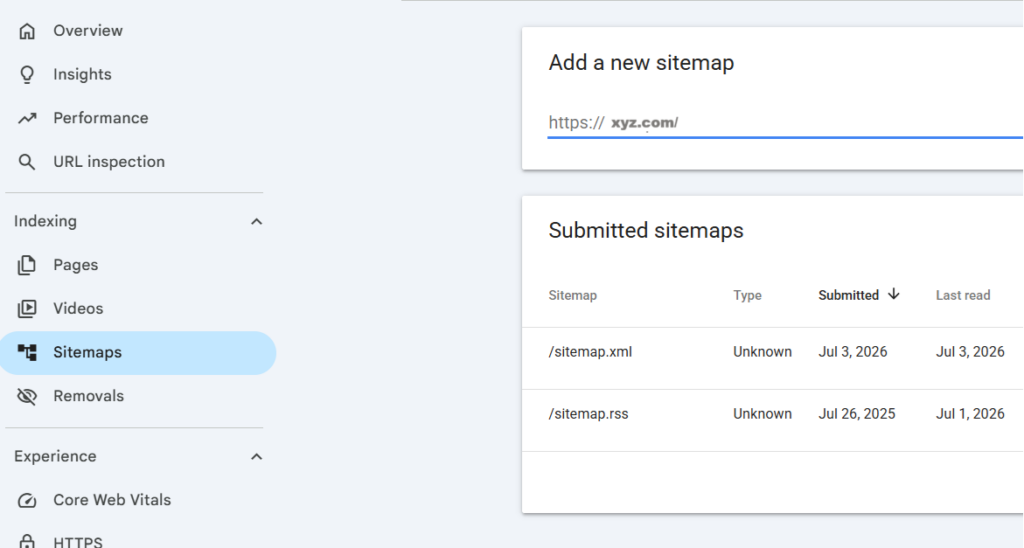
You can also see whether a sitemap has been submitted in the past.
This allows you to submit a sitemap or figure out if the existing sitemap has a wrong format.
No Index Tag
No index is a directive that is used in the HTML code within the <head> section of a page. It tells search engines that they are allowed to crawl the page, but to refrain from indexing it and showing it in the search results.
If a page is not indexed by a search engine, it cannot appear in the search results.
This is the way to check No Index Tag
If you are using a content management system like WordPress and an SEO plugin like All in One SEO (AIOSEO), the settings are usually configured correctly by default.
However, visit the particular page or post that you want to verify, then navigate to AIOSEO > Advanced > Robots Meta.
Check whether No Index has been enabled by mistake. If so, uncheck it and enable the default settings. Save the changes.
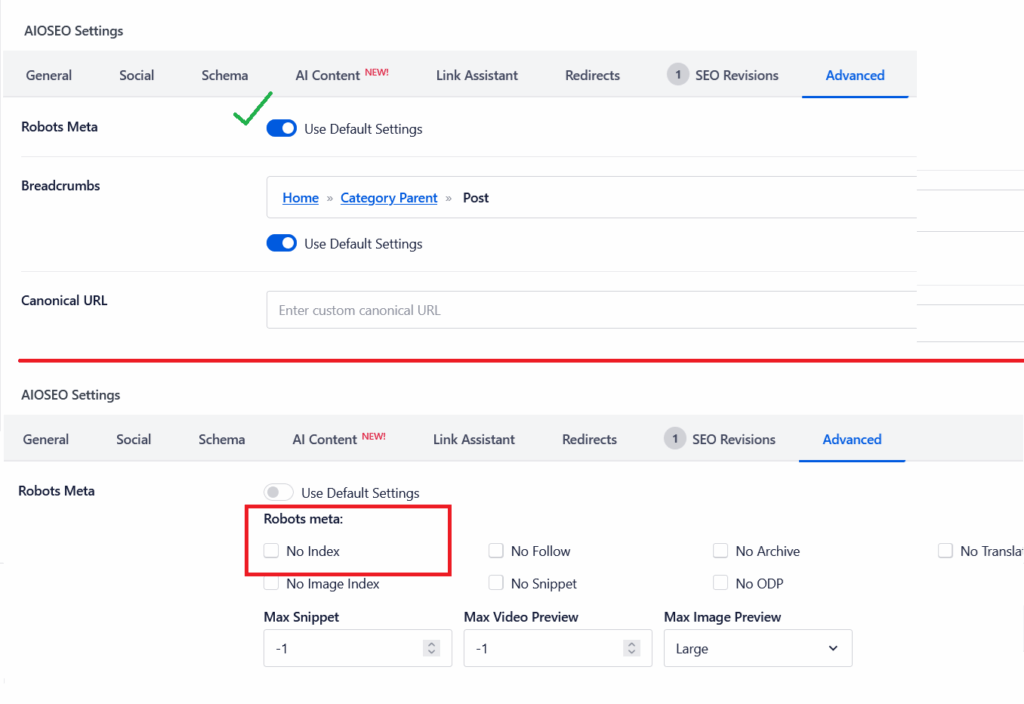
If it is a custom-built website, you will have to view the page source and manually check whether a no-index directive is present in the code. If it is, contact the developer and ask them to change it so the page can be indexed.
Secondary Reasons: Google indexing your content but not showing it in SERP
Keyword cannibalization
Your content might be indexed but not appear in search results. Keyword cannibalization can be one of the reasons.
Example: You may have 2 or more blogs targeting the same keyword.
A blog can target multiple keywords, but the same keyword should not be targeted by multiple blogs.
It confuses search engines in understanding the preferred version. It is like you are competing with your own content.
So Google may not show the page you expect, or its rankings may be affected.
How to fix keyword cannibalization?
Adding a canonical tag
If you are using plugins like AIOSEO, go to the duplicate page or post. Navigate to AIOSEO Settings > Advanced > Canonical URL.
Copy and paste the preferred URL and save the changes.
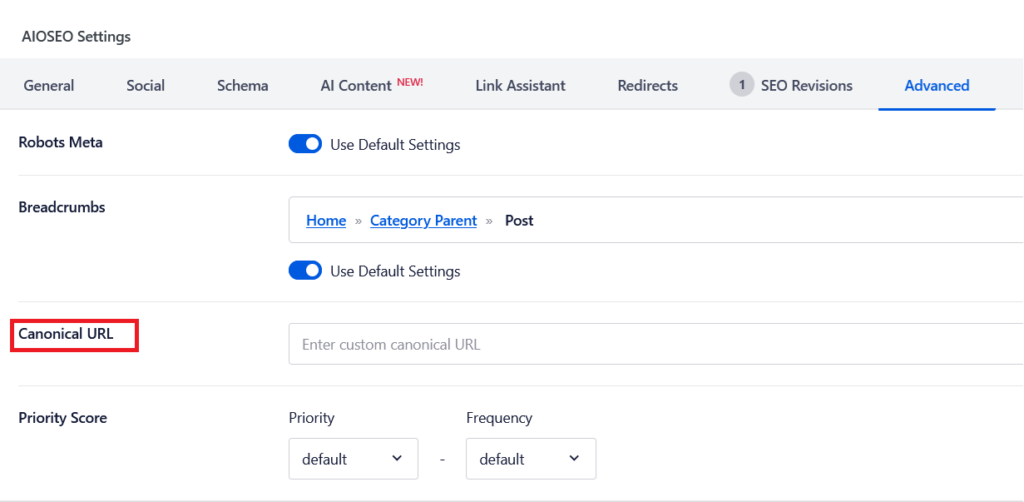
The same applies if you have more than 2 pages targeting the same keyword.
Now it is like telling search engines that there is a canonical version of this page, i.e., the original page.
Using Redirects
Navigate to AIOSEO Settings under the duplicate page or post. Find the Redirects option.
Insert the preferred version’s URL in the Target URL box.
Use a 301 Redirect and save the changes.
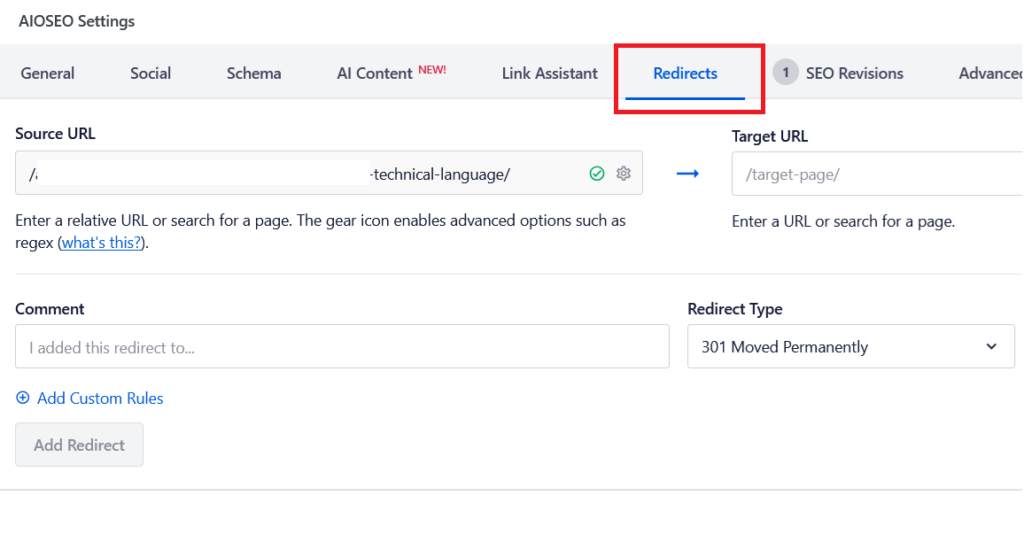
Now, even if visitors find the old URLs elsewhere and click them, they will land on the preferred URL.
Note: Use a 301 redirect only if you are willing to remove the duplicate pages permanently. If you want to keep those pages live and simply indicate which one is the original version, adding a canonical tag is sufficient.
Thin Content
Thin content is content that has no value. It has nothing to offer to the audience. It lacks originality, fresh perspectives, and insights.
This kind of content is often just a curation of information from various blog posts, paraphrased without adding anything new.
Also, using AI to generate content from information that is already available on the internet, without adding human insight, can result in thin content.
Search engine bots may skip such content, consider it poor quality, and choose not to index it.
How to fix thin content?
Spend time on research and analysis to gain more knowledge. Try to understand your niche, your audience’s pain points, and their expectations.
All of this together will give you room to present new viewpoints.
Back your content with data to improve trustworthiness.
Maintain context, relevance, and provide complete solutions.
Once you have made significant improvements, submit the page for indexing again. This should help resolve the issue.
How to check if a page is not indexed by Google Search?
To know which pages are not indexed and why they are not indexed, use Google’s own tool — Google Search Console.
Google Search Console > Indexing > Pages > Not indexed
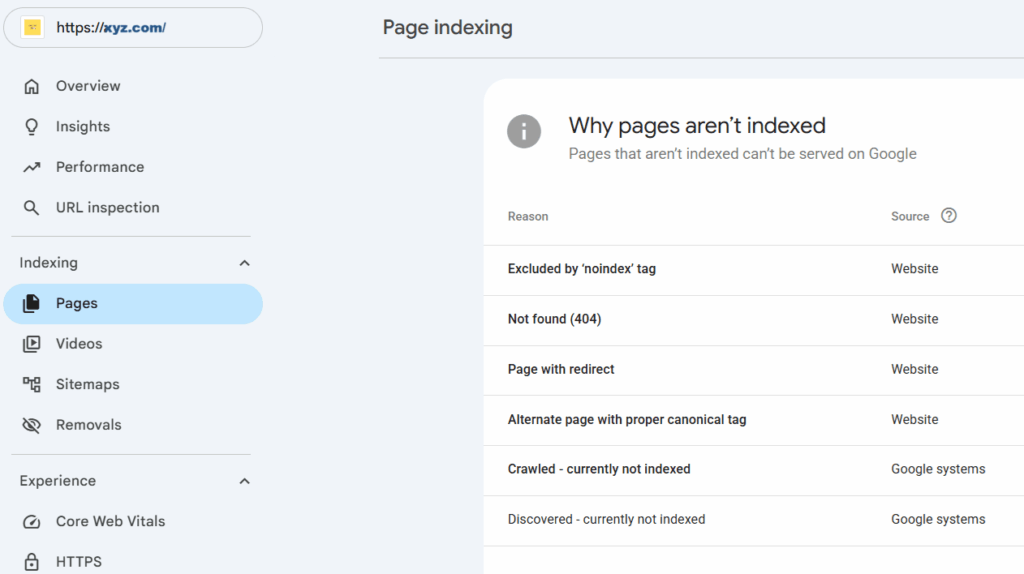
You will see which pages aren’t indexed and the reasons behind them. You can review each one and fix the issue accordingly, as suggested in this blog post.
FAQ’s
What are the common reasons Google doesn’t index a page?
Common reasons include an invalid XML sitemap, a no-index tag, and keyword cannibalization.
Should I use both redirects and canonical tags to fix keyword cannibalization?
No. Use a canonical tag to point duplicate pages to the original. Use redirects only if you want to remove the duplicate pages.
Why should I use redirects for keyword cannibalization?
Redirects send visitors from old or duplicate URLs to the preferred URL.
What is the correct XML sitemap URL?
Example: https://yourdomain.com/sitemap.xml
Does indexing guarantee rankings?
No. Indexing means a page is eligible to appear in search results. Ranking determines where it appears in search results.